
Scenarios to be used for Azure VMs redeploy.
- Due to Hardware failure from MS team.
- If you are unable to connect to VMs.
- Unable to take the RDP.
- In case of the migrating VMs from one Host to Another Azure Host etc.
Before Redeploy Verification Steps.
- Please make sure you have configured the backup properly.
- Save IP related Information and reversed the IP address.
- Save the VMs configuration settings.
- Please remove the data from temporary drive if VMs reboot, all data will be lose.
- VMs will not be available during Redeployment starts.
Steps: Azure VMs Redeploy.
- Logging to Azure Portal: – AzurePortal
- Select the VM Select the VM you need to redeploy
- Go to Support + Troubleshooting
- Select the Redeploy
- Click ok
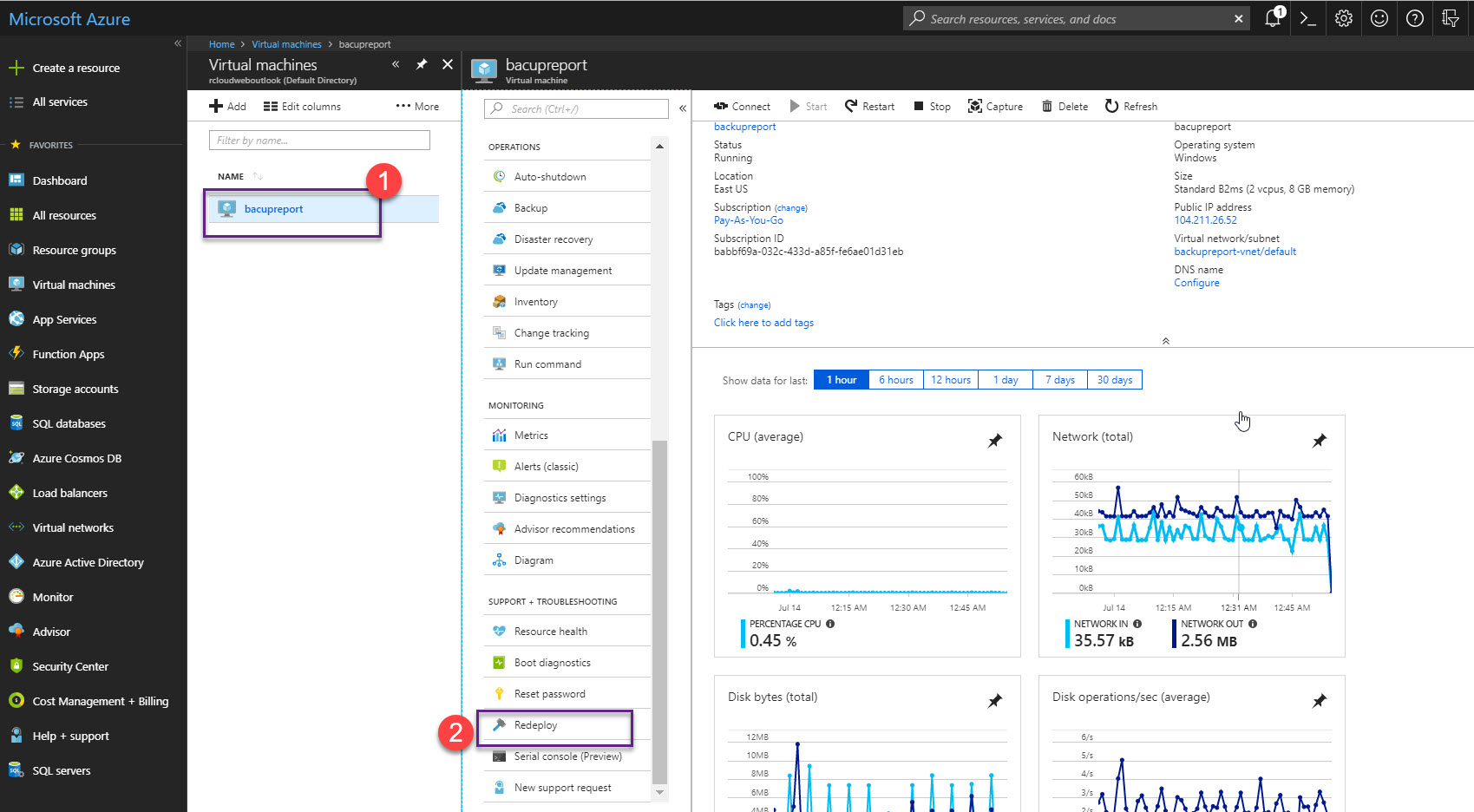
- Select the VMs
- Click on the Redeploy option.
- Read the instruction Carefully.
- Click on redeploy.

Once the Redeployment is completed , Please log in to the VMs and Verify.



 Azure4you By Lalit Rawat
Leave a comment